Invite teammates and set roles
Add colleagues to your workspace and choose what each of them can do.
Written By Ignace
Last updated 21 days ago
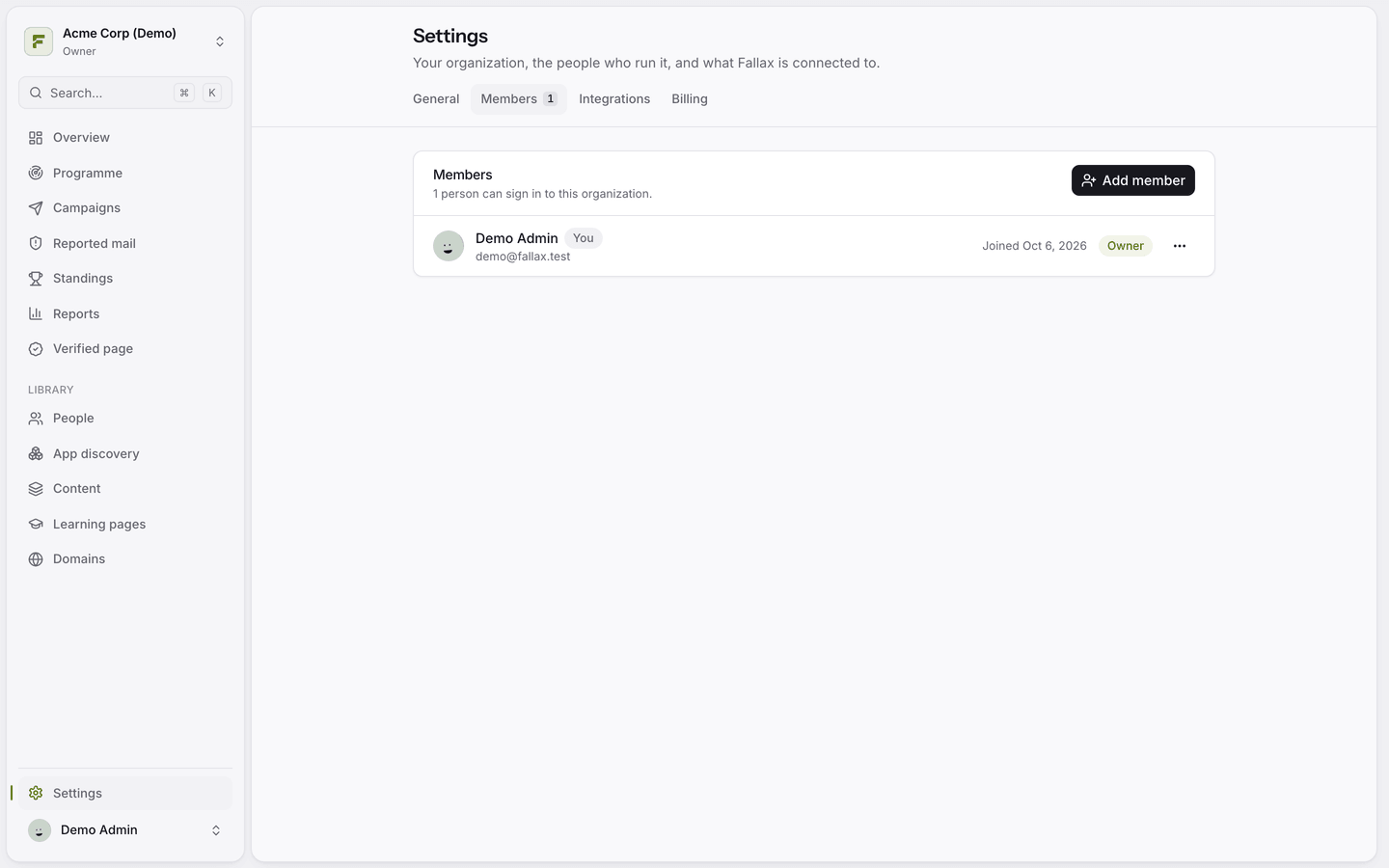
Members are the people who run Fallax with you. They are separate from the employees you test, who live under People.
Roles
Only an owner can make someone else an owner. Some settings are for owners and admins only: domains, directory sync, mail connections, the Programme, API keys, AI assistant access and publishing the Verified page.
Invite someone
Go to Settings → Members.
Click Add member.
Enter their email address, pick a role, and confirm.
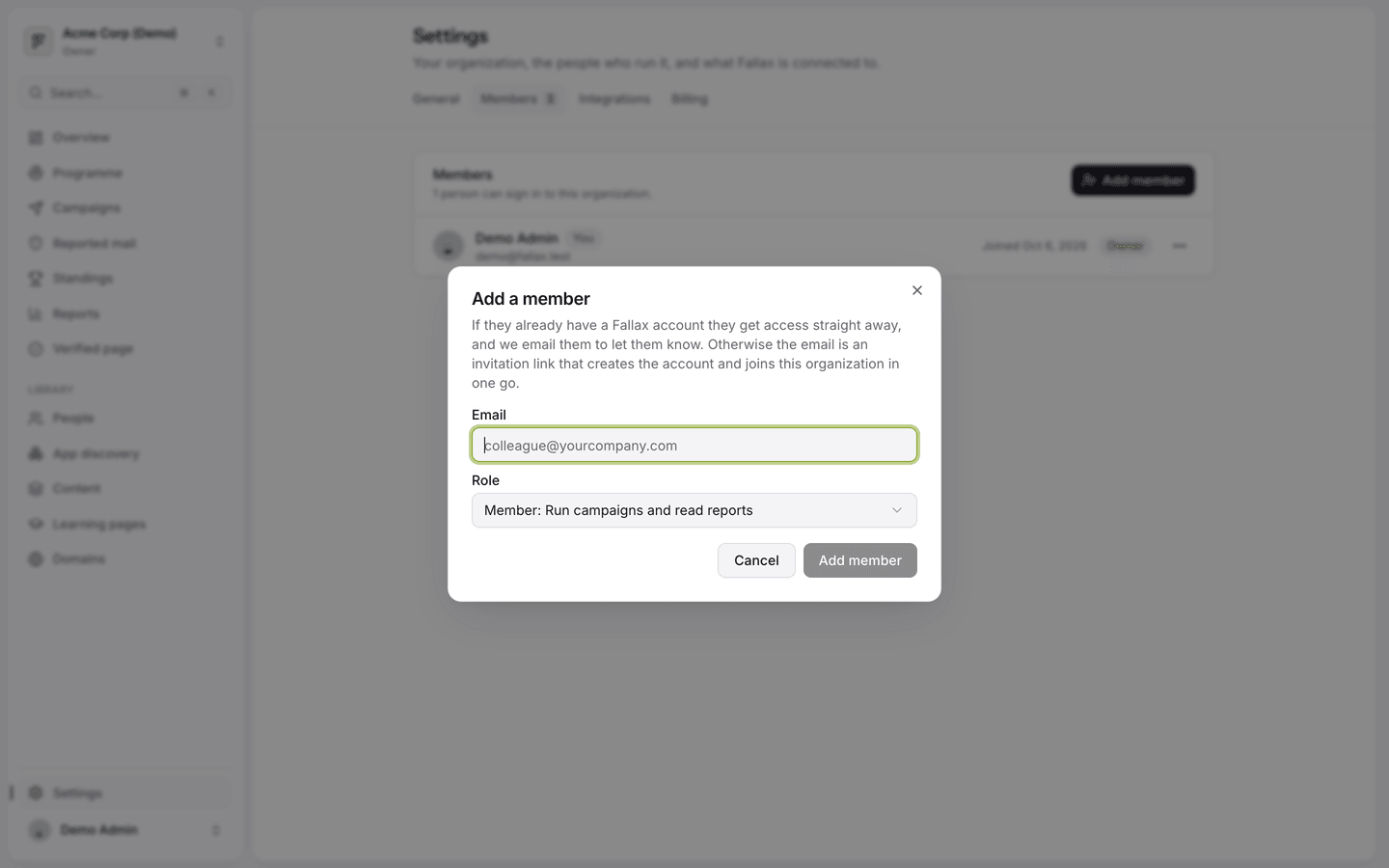
If the person already has a Fallax account, they get access straight away and an email to tell them. Otherwise they receive an invitation link that expires after 7 days. Pending invitations are listed on the same page, where you can revoke them.
Requests to join
When a colleague at your verified domain signs up, they can ask to join your workspace instead of creating a new one. Their request shows up under Requests to join. Owners and admins can approve or decline it. Approved people join as members.
Change a role or remove someone
Open the ⋯ menu next to a member to change their role or choose Remove from organization.
Was this helpful?
Still need help? Ask the team