Set up phishing reporting
Credit people who report a simulation, from a report mailbox or Gmail's button.
Written By Ignace
Last updated 21 days ago
Reporting a suspicious email is the behaviour you most want to see. Fallax credits people when they report a simulation, raises their security score, and lists everything they reported under Reported mail.
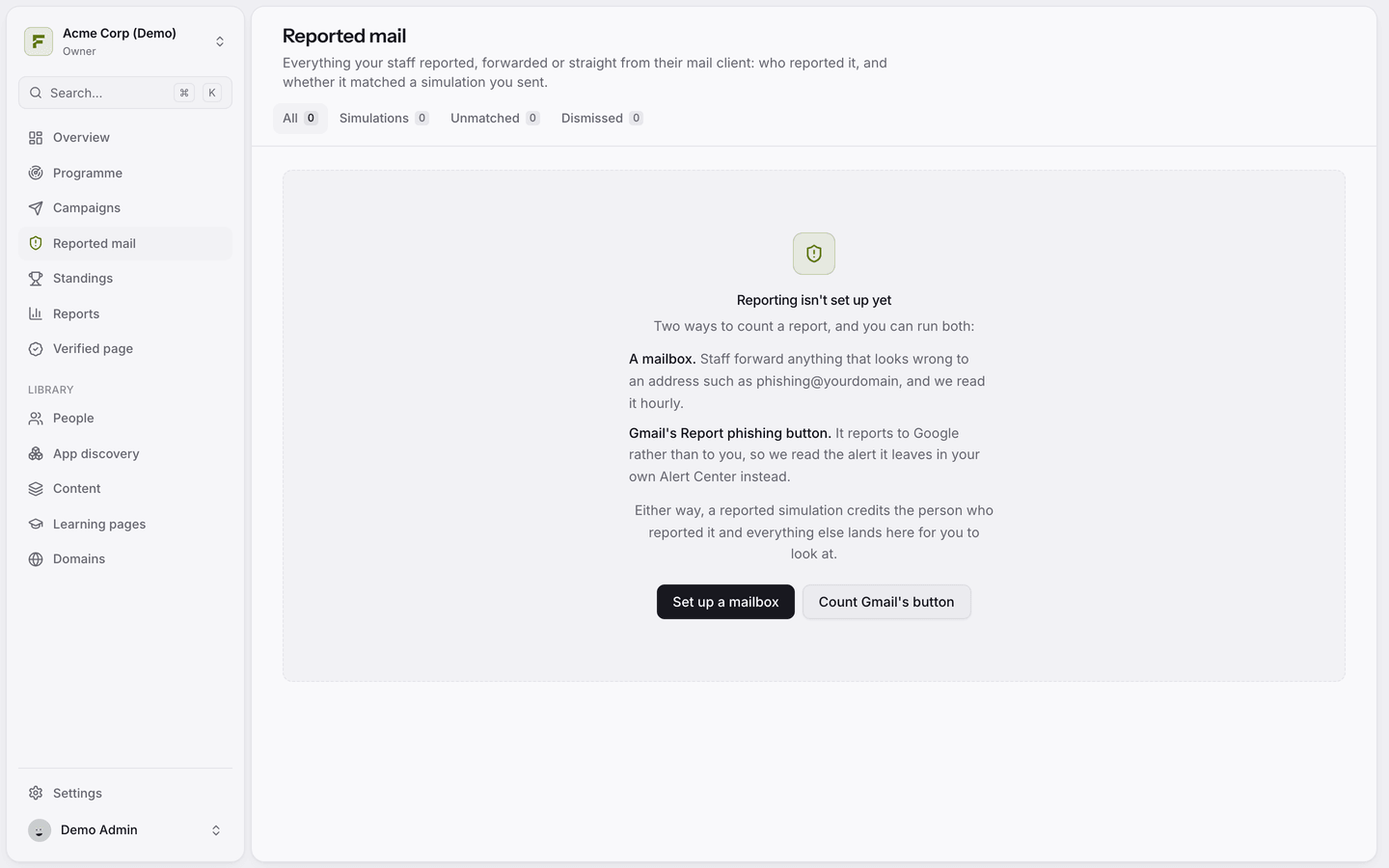
There are three ways to count reports. You can use more than one.
Option 1: A report mailbox
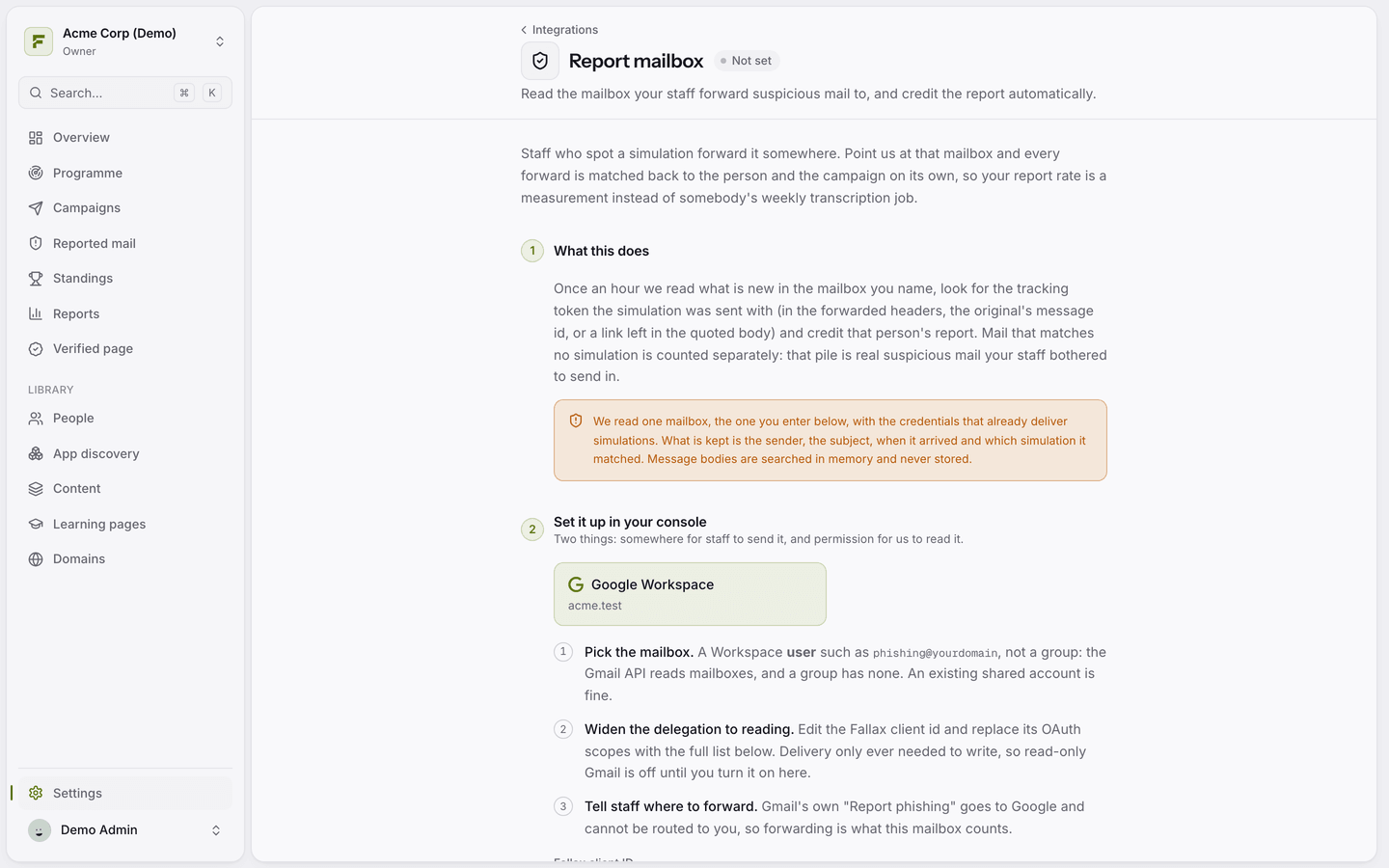
Staff forward suspicious mail to a shared address, such as phishing@yourdomain.com. Fallax reads that mailbox every hour, recognises forwarded simulations and credits the right person. Anything that is not a simulation is listed separately as real suspicious mail.
Go to Settings → Integrations → Report mailbox.
Choose the mailbox and follow the steps for your platform.
Microsoft 365: add the report mailbox to the same group as your application access policy, or Fallax cannot read it. You can also point Defender's User reported settings at this mailbox, so Outlook's built-in Report button feeds it.
Google Workspace: use a user mailbox, not a Google group. It needs the Count forwarded reports capability.
Fallax reads from the moment you save, never backwards. It keeps the sender, subject and time of each report. Message bodies are scanned in memory and never stored.
Option 2: Gmail's Report phishing button
On Google Workspace, Fallax can read the alerts Google raises when someone uses Gmail's own Report phishing button. Turn it on under Settings → Integrations → Gmail Report phishing. Google decides when to raise these alerts, so credit can arrive minutes or hours later.
Option 3: The Fallax Report button for Gmail
A Gmail add-on your admin installs for the whole domain. Credit is instant and the person sees a thank-you card straight away. The add-on cannot move or delete mail.
Working with reported mail
Tabs: All, Simulations, Unmatched and Dismissed.
Credit the report to match an unmatched report to a simulation by hand.
Check now reads the mailbox straight away.
Say thank you automatically
Under Standings → Acknowledgements you can turn on a short thank-you email for people who report a simulation, with a link to their own standing. It is off by default and never names colleagues.
Was this helpful?
Still need help? Ask the team